Movavi Effects
Get stunning titles, transitions, stickers, and other extra content crafted by professional designers.
70M+


Video maker and file converter
Create killer videos in a snap: have fun with dazzling effects, use AI to quickly swap out backgrounds and remove noise, polish the sound, and convert files in the blink of an eye.
Screen recorder
Grab any desktop activity in a click: record video lessons, software demos, webinars, and more. Highlight mouse and keystrokes and draw on recordings in real time to make super informative presentations.
Useful extras
Enhance your video-making experience with these cool extras: a powerful CD/DVD/Blu-ray burner, simple media player, and lots of stock content to amp up your video creations.
Simple video ideas
Get fresh video ideas – always relevant and created exclusively for Movavi users. Perfect for anything from short reels to long vlogs, with step-by-step tips to help you make great content fast.
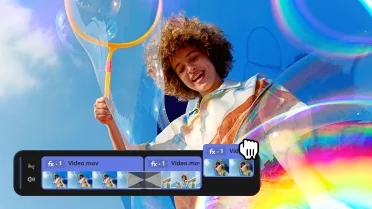
Revamped timeline for easier editing
The new timeline is now clearer and more streamlined. Get your projects done faster and have more fun with anything – from short vids for socials to longer family movies.
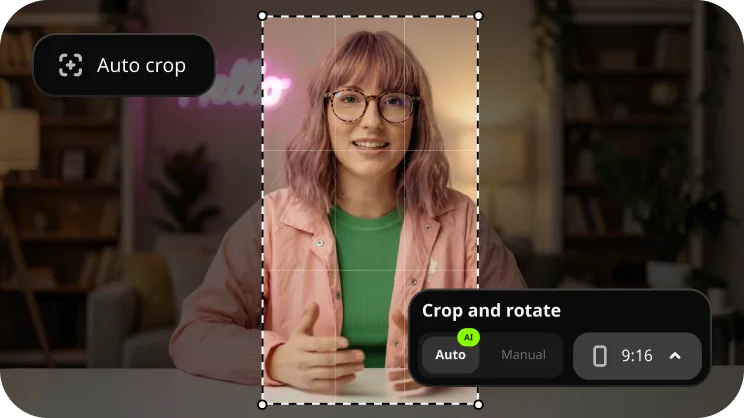
Auto-tracked cropping
Crop videos while keeping the speaker or product centered – automatically. The tool follows the main subject and adjusts the frame on-the-go. Perfect for transforming horizontal clips into vertical while still highlighting what matters most.
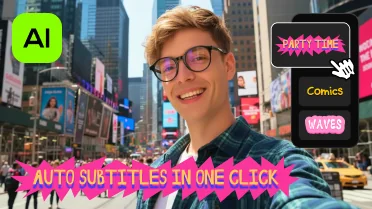
One-click automatic subtitles
Let AI quickly turn your speech into text and automatically create captions for your videos in almost any language. Just choose the font, text color, position – and you’re all set!
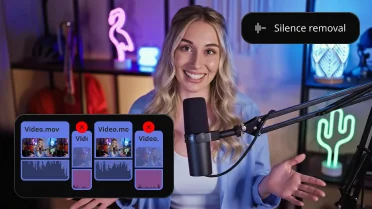
Silence removal
Cut out unwanted pauses automatically or fine-tune the pause length and volume threshold yourself. You’ll save time and be able to skip the tedious cleanup – so you can focus on the fun.
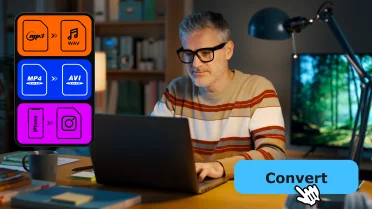
Ultrafast conversion
Boost productivity, save time, and unlock compatibility across all devices: change the format of your videos in the blink of an eye.
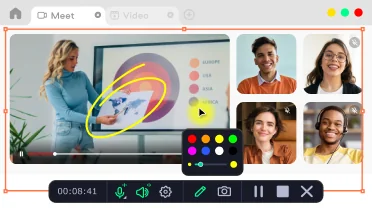
Create screencasts
Effortlessly capture screens and the attention of your viewers. Grab the full screen or a custom area at the click of a button.
Movavi Ideas – never run out of things to create

Blur your vlog background
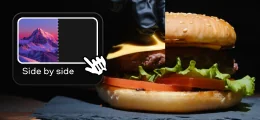
Show process and result
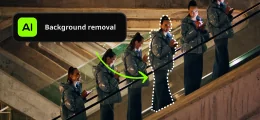
Clone yourself in a video
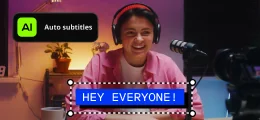
Just add subtitles
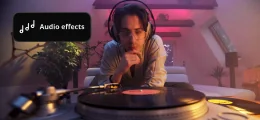
Make your video sound cinematic
Use the background removal tool and a blur filter in your vlog to keep the focus right where it belongs – on you. Perfect for creators chasing that pro look without the pro gear.
Split the screen to show the “how” on one side and the “wow” on the other – simple and engaging!
Use the quick background removal tool to clone yourself in a video and make your content multiple times cooler – literally!
About 70% of people watch videos without sound – so subtitles are a must. Generate them automatically with one click, and your video will be loud and clear, even on mute.
Apply retro radio and phone sound effects to your video’s audio – perfect for an instant cinematic mood and aesthetic edits.
Get extra effects for your videos
Movavi Effects
Get stunning titles, transitions, stickers, and other extra content crafted by professional designers.
Microsoft® Windows® 10/11 64-bit with up-to-date patches and service packs installed
Visit Movavi Store for older versions
Intel®, AMD®, or compatible dual-core processor, 1.5 GHz
Intel® HD Graphics 2000, NVIDIA® GeForce® series 8 and 8M, Quadro FX 4800, Quadro FX 5600, AMD Radeon™ R600, Mobility Radeon™ HD 4330, Mobility FirePro™ series, Radeon™ R5 M230 or higher graphics card with up-to-date drivers
1280 × 768 screen resolution, 32-bit color
4 GB RAM
600 MB available hard disk space for installation, 1350 MB for ongoing operations


1.5M+ users already subscribed to our newsletter