Step 1. Open your video in Movavi Video Editor
Download Movavi Video Editor for Windows or Mac. Launch the app and drop your clip onto the timeline. The interface is clean, intuitive, and ready for quick sound fixes without hunting through menus.

Movavi Video Editor is a reliable video volume booster for PC and Mac that lets you increase the volume of any video in just a few clicks – whether the original was recorded too quietly or simply needs more presence.
Import your file, adjust the audio track, and export a louder, cleaner version without leaving your editing workspace.
Millions


Everything you need to increase the volume of any video – precisely, quickly, and without degrading audio quality.
Per-clip volume slider
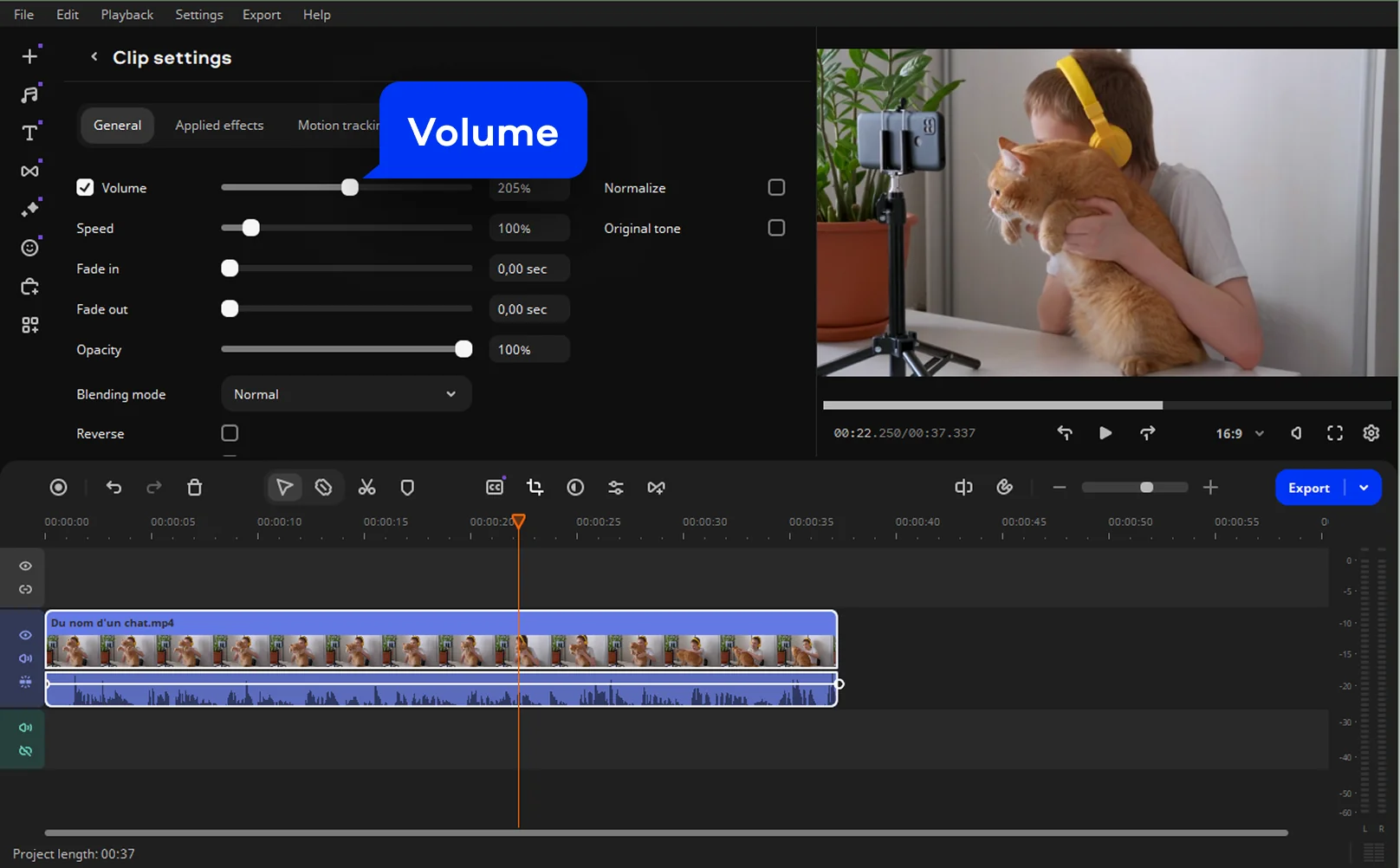
The volume slider lets you increase video volume on any individual clip directly on the timeline, with a live audio preview, so you hear the change before saving. You can adjust one clip without touching the rest of your project.
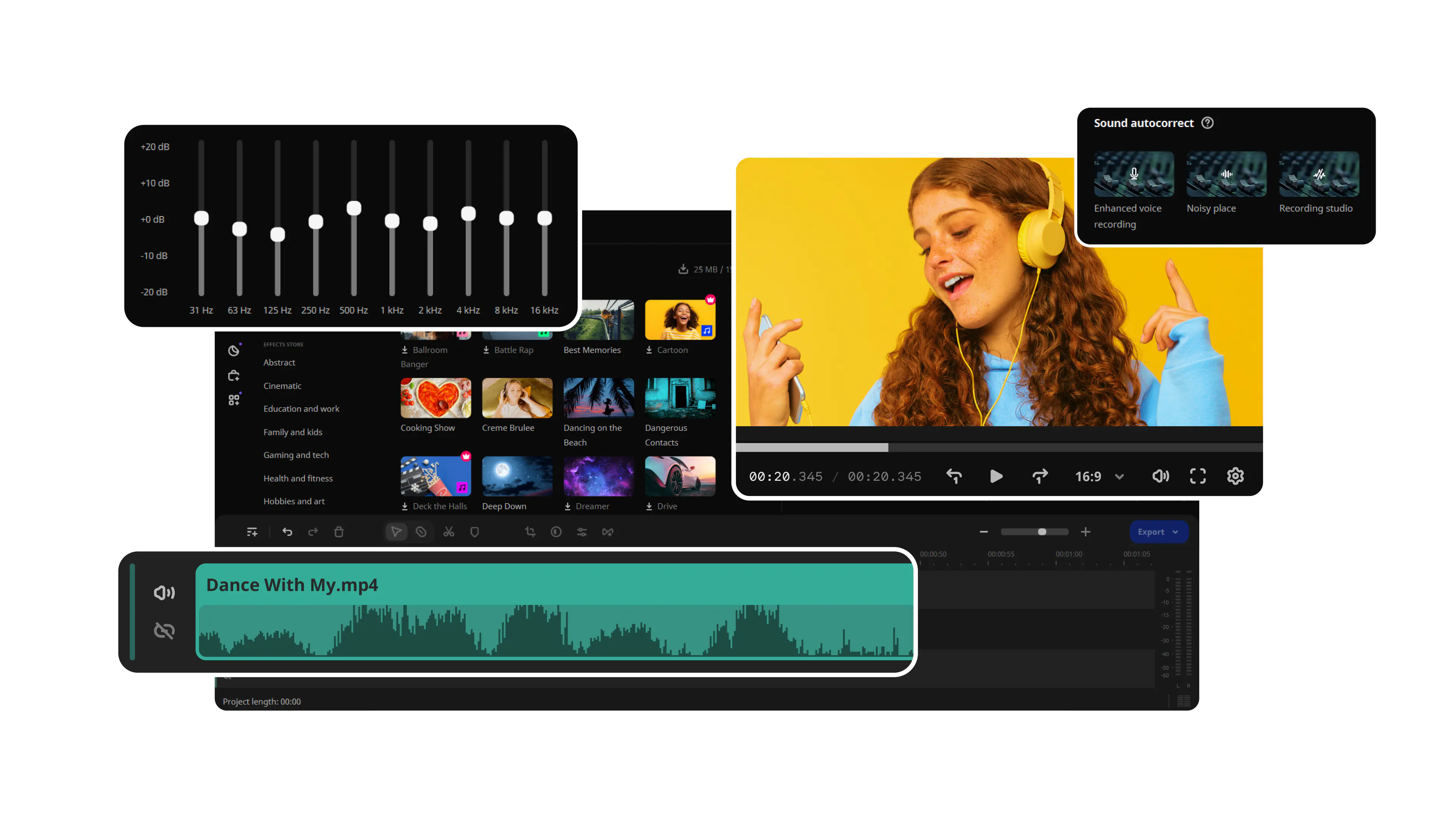
Audio normalization
Movavi's normalization tool scans selected clips in your project and raises quiet passages to a consistent target loudness while protecting peaks from clipping. One click balances an entire sequence that was recorded at inconsistent levels.
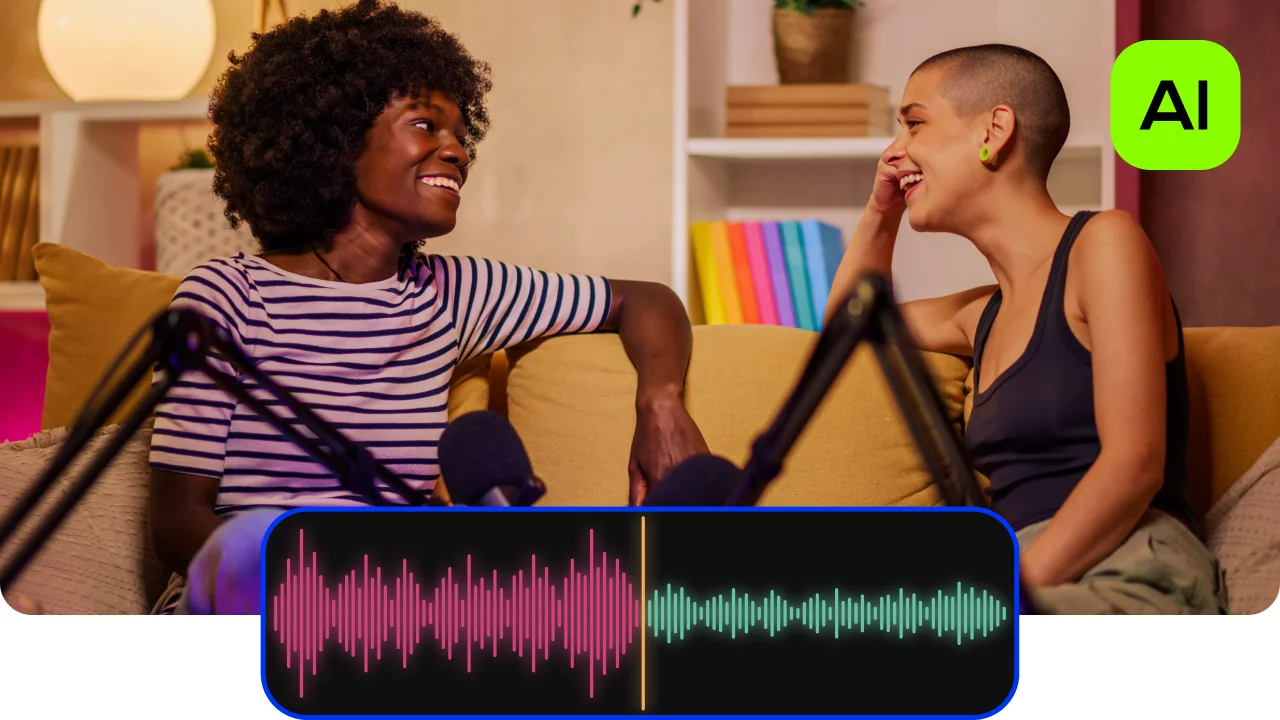
Built-in equalizer and audio filters
Beyond raising the overall level, Movavi gives you EQ bands and audio enhancement filters to shape the boosted sound. Add midrange presence to bring voices forward or increase low-end body to give music depth – all inside the same editor, with no need to round-trip to a separate audio application.

Lossless-quality export in any format
Once you've boosted the volume, export in MP4, MOV, AVI, MKV, or any other widely supported format at up to 4K resolution. Movavi preserves audio quality through the full render pipeline, so the louder version sounds clean – no added noise, no compression hiss, no drop in loudness after encoding.
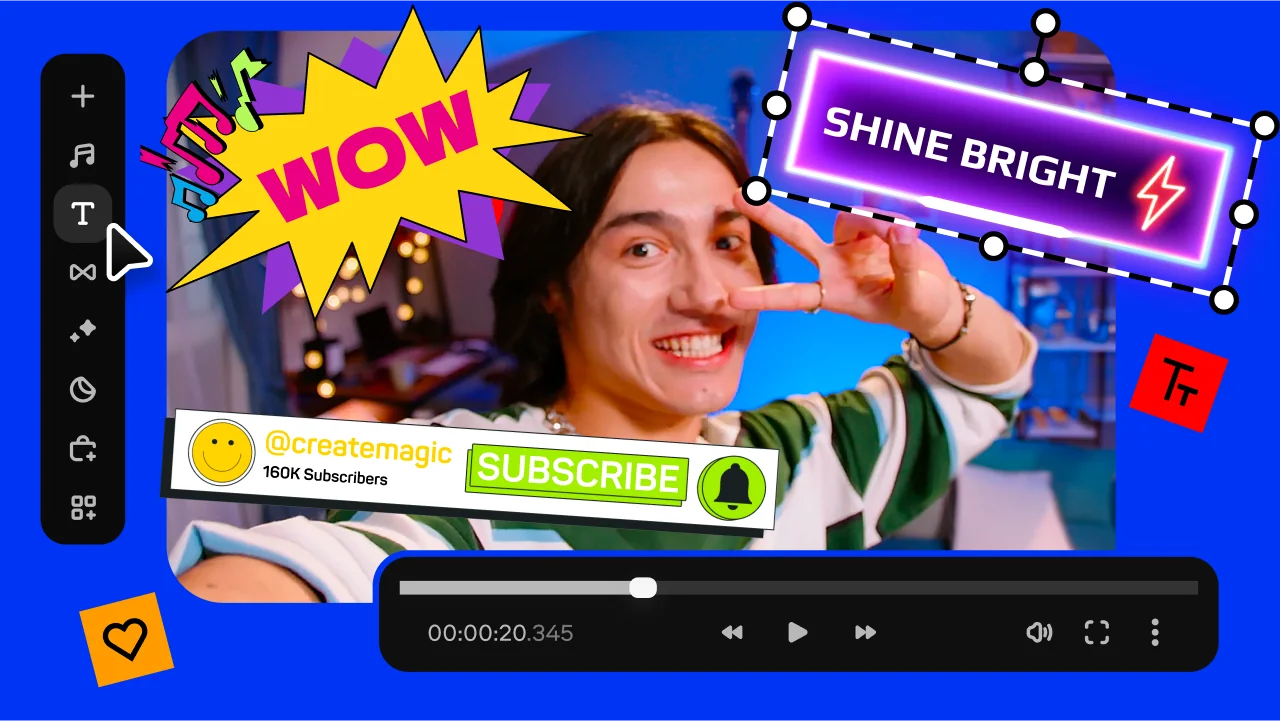
Why choose Movavi to increase video volume
Three reasons Movavi outperforms standalone converters and free online tools.
How to make video louder with Movavi Video Editor
Download Movavi Video Editor for Windows or Mac. Launch the app and drop your clip onto the timeline. The interface is clean, intuitive, and ready for quick sound fixes without hunting through menus.
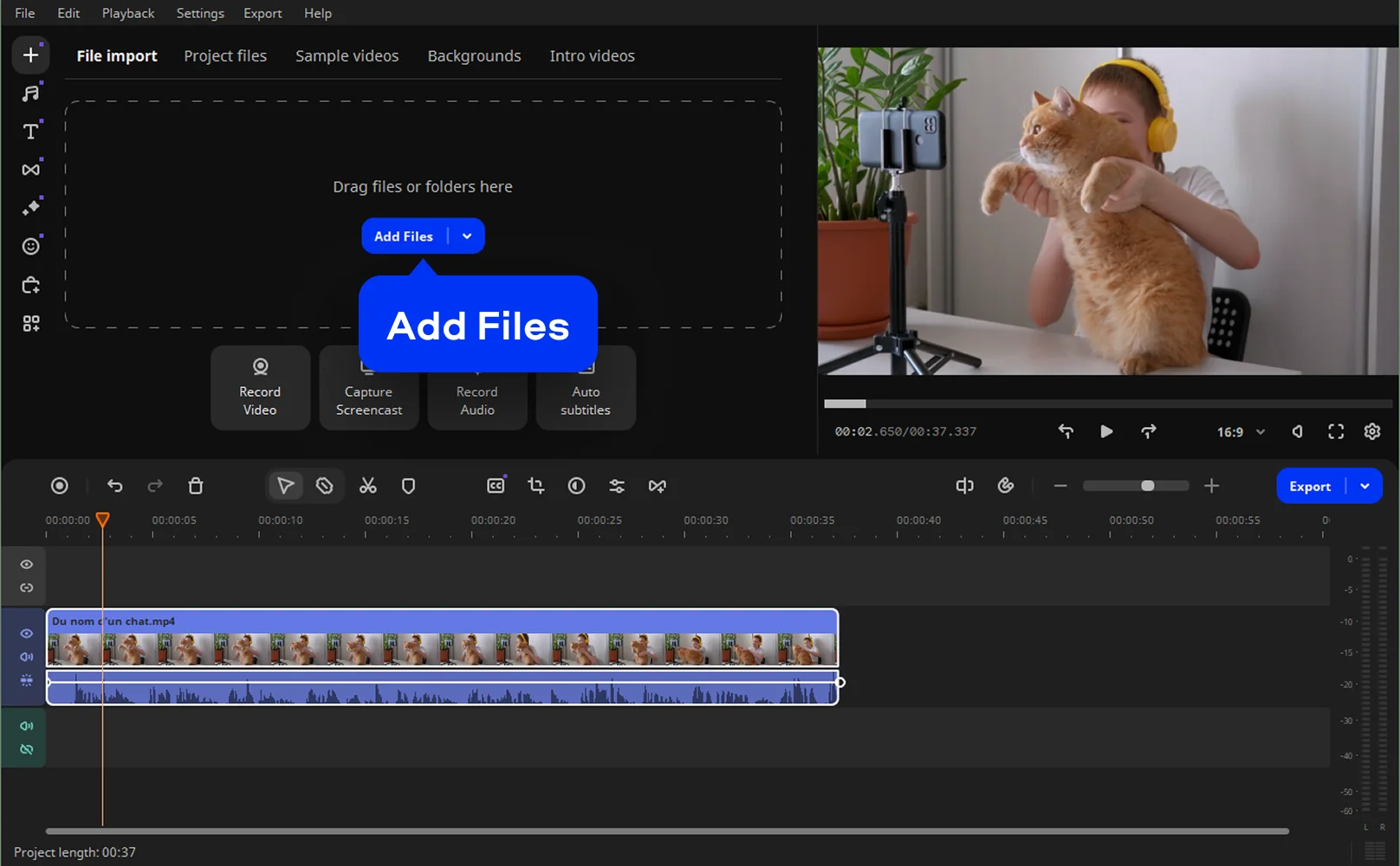
Double-click the audio waveform under your video. This activates volume controls and ensures changes apply precisely where you need them, not globally or by accident.
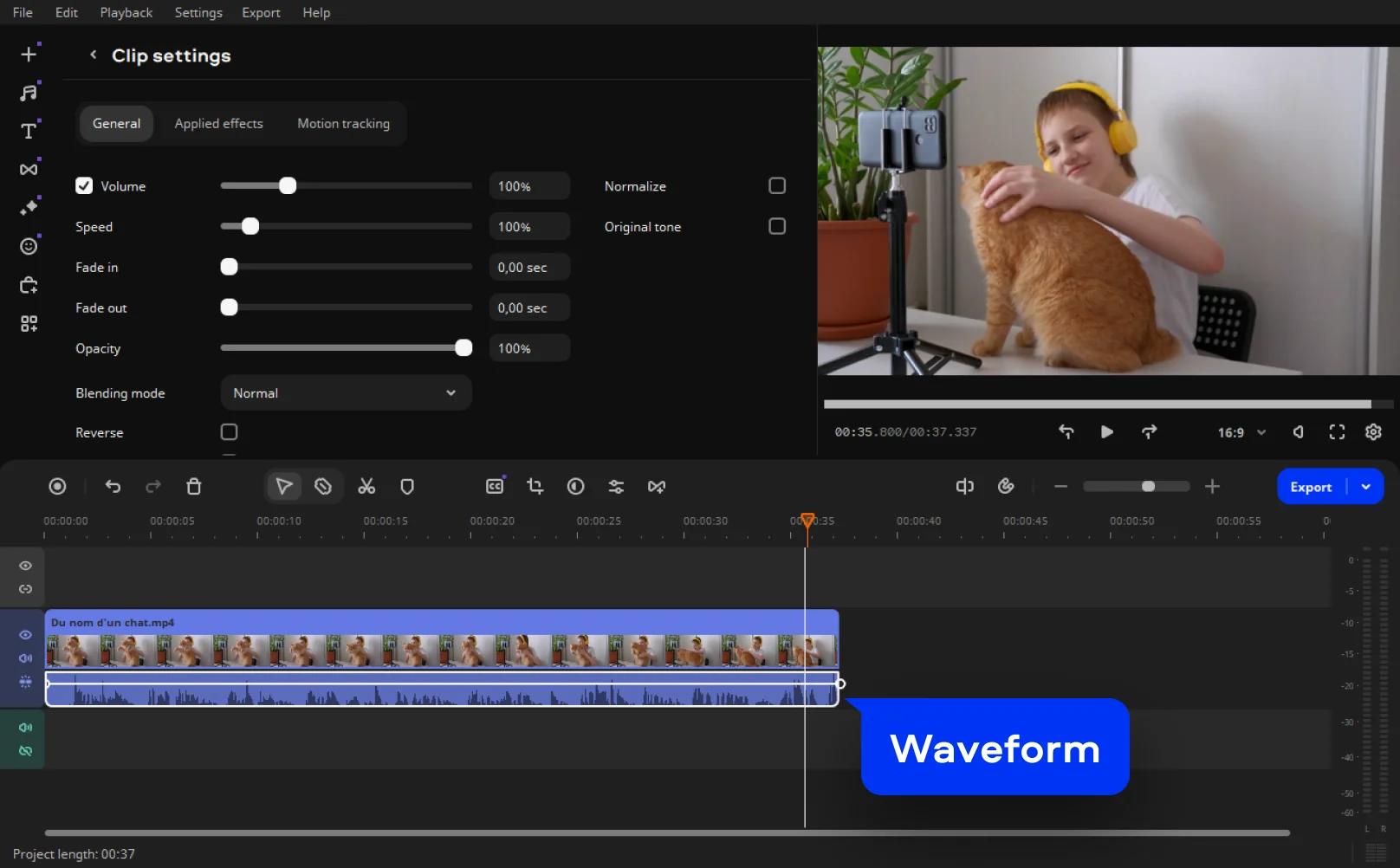
Use the volume slider to make the video louder gradually. Movavi Video Editor shows real-time feedback, so you can hear changes instantly and avoid distortion or blown-out sound.
Play the clip back through speakers or headphones. If needed, tweak volume levels or apply subtle enhancements to keep dialogue clear and balanced.
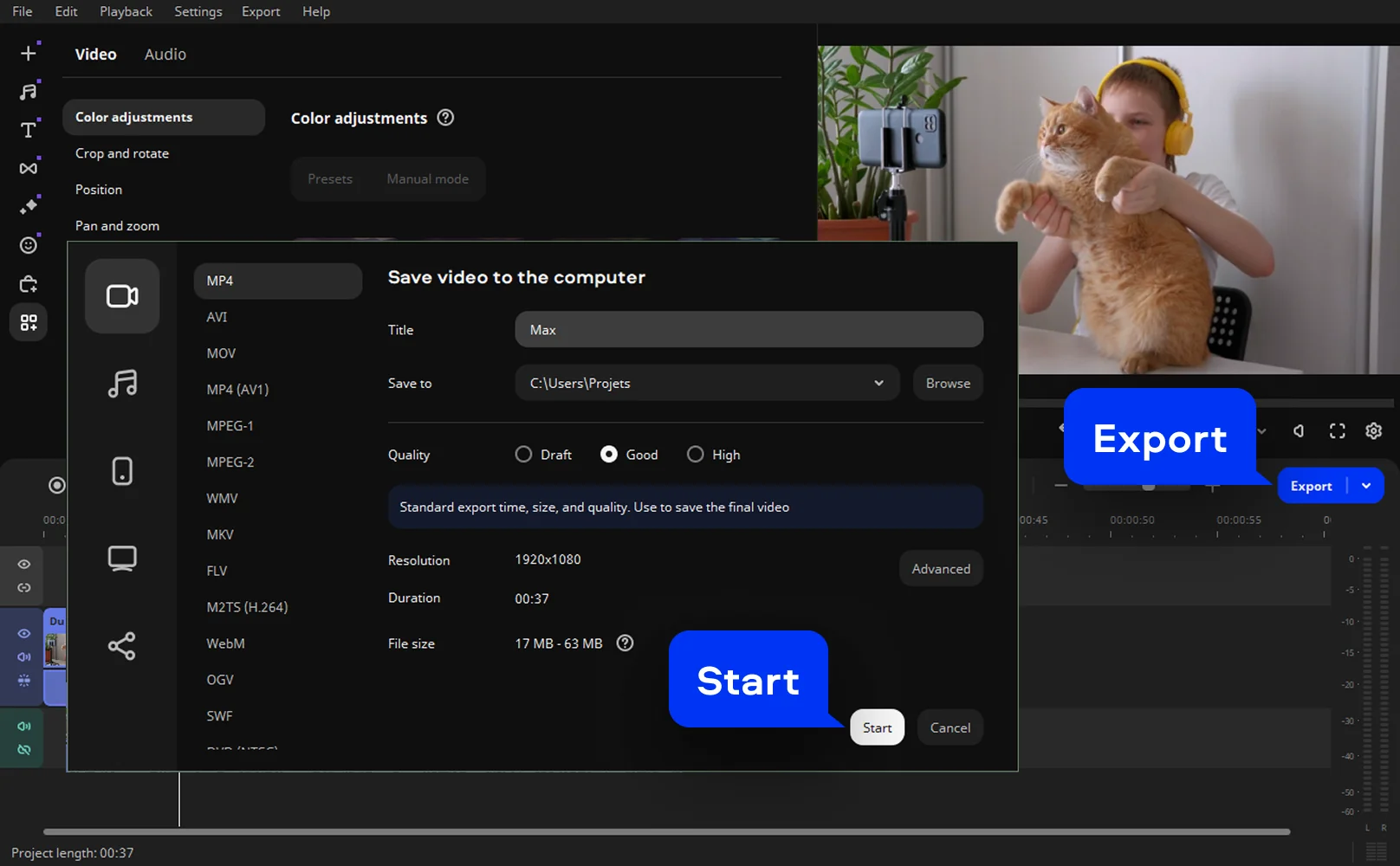
Click Export to save your project in the desired format and resolution. Your video now sounds fuller, clearer, and actually audible – as it should have from the start.
Who needs a video volume booster
Quiet audio is a common problem across very different types of creators.
🎙️ Vloggers & YouTube creators · CONTENT CREATION
Talking-head videos and on-location vlogs shot with built-in camera or phone microphones often come out too quiet for comfortable listening on laptop speakers. Boosting dialogue volume makes the content immediately more watchable, reduces viewer drop-off in the first thirty seconds, and removes the need for expensive re-recording.
📊 Corporate & training video teams · ENTERPRISE
Webinar recordings, screen-capture tutorials, and internal training videos are routinely captured at low gain because presenters forget to check microphone levels. A video volume booster fixes the master recording in minutes so every employee hears instructions clearly – whether watching at a desk or on a shared conference-room display.
🎬 Indie filmmakers & film students · FILMMAKING
Low-budget shoots rarely have dedicated sound recordists, leaving dialogue and ambient audio at inconsistent levels between scenes. Movavi's per-clip boosting and normalization let independent filmmakers match loudness across an entire cut and produce a final mix that sounds intentional rather than like an uncorrected draft.
Everything you need to know about how to increase video volume with Movavi.
The simplest way to increase the volume of a video that already exists is to open it in a desktop editor like Movavi Video Editor. Import the file, double-click the audio track on the timeline, and drag the volume slider upward. Movavi previews the change in real time so you can stop at the right level. Once you're happy with the loudness, export the file – the process takes under five minutes for a typical clip.
Yes. You can use the free version of Movavi Video Editor – this video volume booster offers tools like a volume slider, normalization, and EQ filters. Online browser tools like Clideo or Kapwing also let you increase video volume for free, though they impose file-size limits and longer processing times. For occasional use on small files, online tools are fine; for regular editing or larger projects, a desktop volume booster like Movavi gives you more precision, faster processing, and no upload queue.
Absolutely – this is one of the most common audio fixes in post-production. No matter how quietly a video was originally recorded, you can increase the volume of the video in editing software without re-recording anything. Import the existing file into Movavi Video Editor, raise the track volume to the desired level, and export a new version. The original file remains untouched. The only limit is how much gain can be added before clipping distorts the audio – Movavi's real-time peak monitoring helps you stay safely below that threshold while still getting a meaningfully louder result.

Video Quality Enhancer
How to Remove Background Noise from Video
Add Audio to Video Online for Free With No Watermark
How Audio Normalization Works: Using an Audio Normalizer
Mute Video Online for Free — Remove Audio From Video
Change Video Speed Online for Free
How to Brighten a Video: Best Ways in 2026
[OFFICIAL] Video editor
How to Add Music to a Video 🎵 | Add Audio to Videos Easily
Remove Noise from Your Videos – Download Now



1.5M+ users already subscribed to our newsletter